Integrating Zoho Mail with Zoho CRM using IMAP ensures that your email communications are synced seamlessly across platforms. This guide walks you through the process step-by-step, making it easy to set up IMAP integration for your Zoho Mail account.
Step 1: Enable IMAP Access in Zoho Mail
Access Zoho Mail Settings:
- Navigate to Zoho Mail instead of going directly to the email settings in Zoho CRM.
- Click on the Settings gear icon located in the top-right corner.
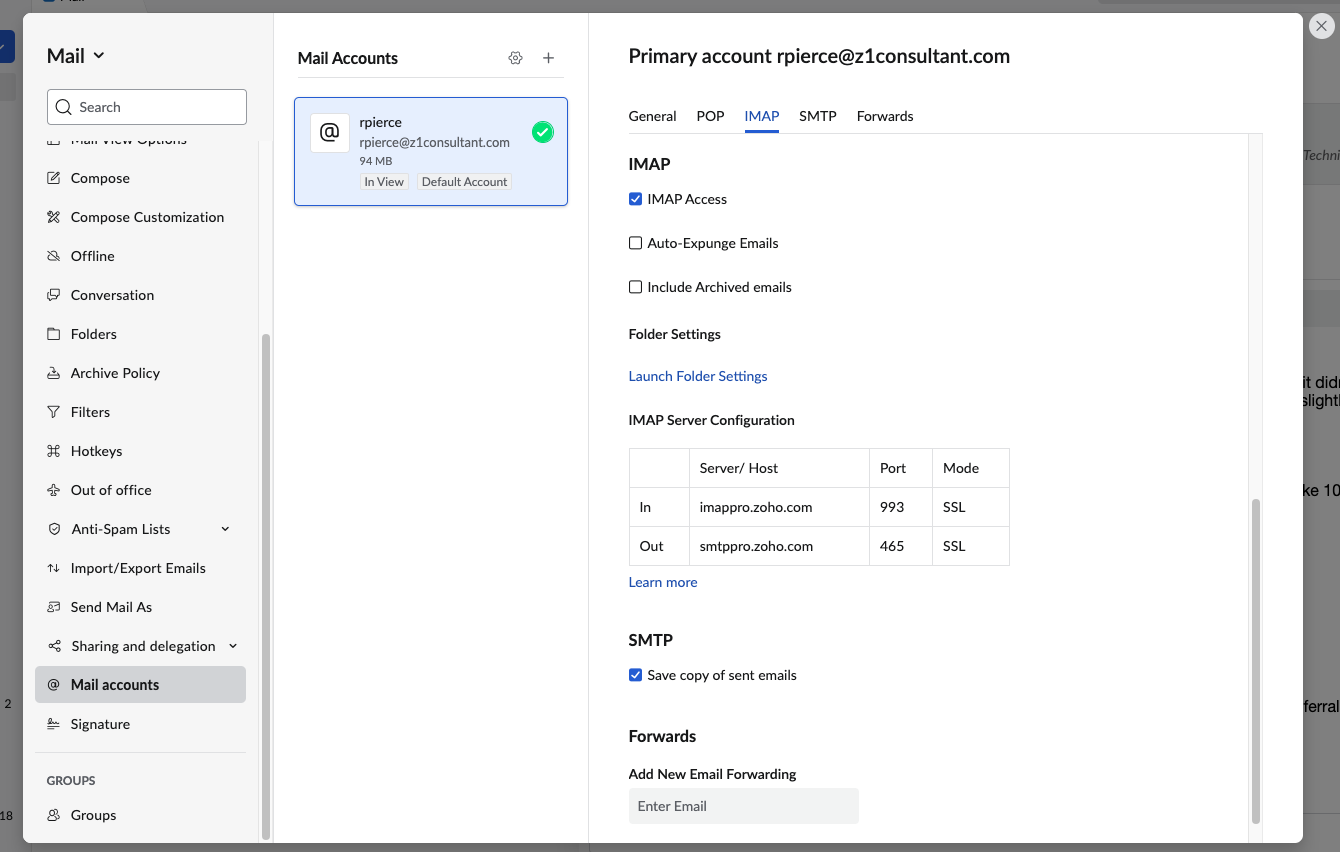
Enable IMAP:
- From the left navigation bar, select Mail Accounts under Settings.
- Click IMAP and check the box to enable IMAP access.
Step 2: Generate an Application-Specific Password
Open My Account Settings:
- Click on your user profile in the top-left corner of Zoho Mail.
- Select My Account to access your account settings.
Generate Password:
- Under Security, scroll down to Application-Specific Passwords and click Generate New Password.
- Enter Zoho Mail as the application name and generate the password.
- Important: Copy the one-time password immediately, as it won’t be displayed again.
Step 3: Configure IMAP in Zoho CRM
Navigate to Email Settings in CRM:
- Go to Zoho CRM and click Setup (gear icon).
- Under Channels, select Email and then click Email Configuration.
Enter Email Details:
- Click Email and fill in the required fields:
- Display Name: Enter your name, e.g., “Riley Pierce.”
- Email Address: Enter your Zoho Mail email address.
- Password: Paste the one-time password generated in Step 2.
- Click Email and fill in the required fields:
Complete Configuration:
- Click Configure to save the settings and establish the connection.
What’s Next?
Once configured, your Zoho Mail and Zoho CRM accounts will sync seamlessly, enabling you to:
- Track email conversations directly in CRM.
- Associate emails with leads, contacts, and deals for better context.
- Automate workflows and follow-ups based on email activity.
Tips for a Smooth Integration
- Test the Connection: Send a test email to ensure the integration is working properly.
- Secure Your Account: Regularly update your application-specific passwords for enhanced security.
- Use Zoho Support: If you encounter any issues during the setup, Zoho’s support team is just a click away.
Need Help Setting Up Zoho Integrations?
At Z1 Consultant, we specialize in streamlining and optimizing Zoho setups for businesses. Whether it’s email integration, CRM customization, or workflow automation, we’re here to help.
Schedule a call with us today to make the most of your Zoho tools!
Have questions or run into any issues? Drop them in the comments, and we’ll be happy to assist!